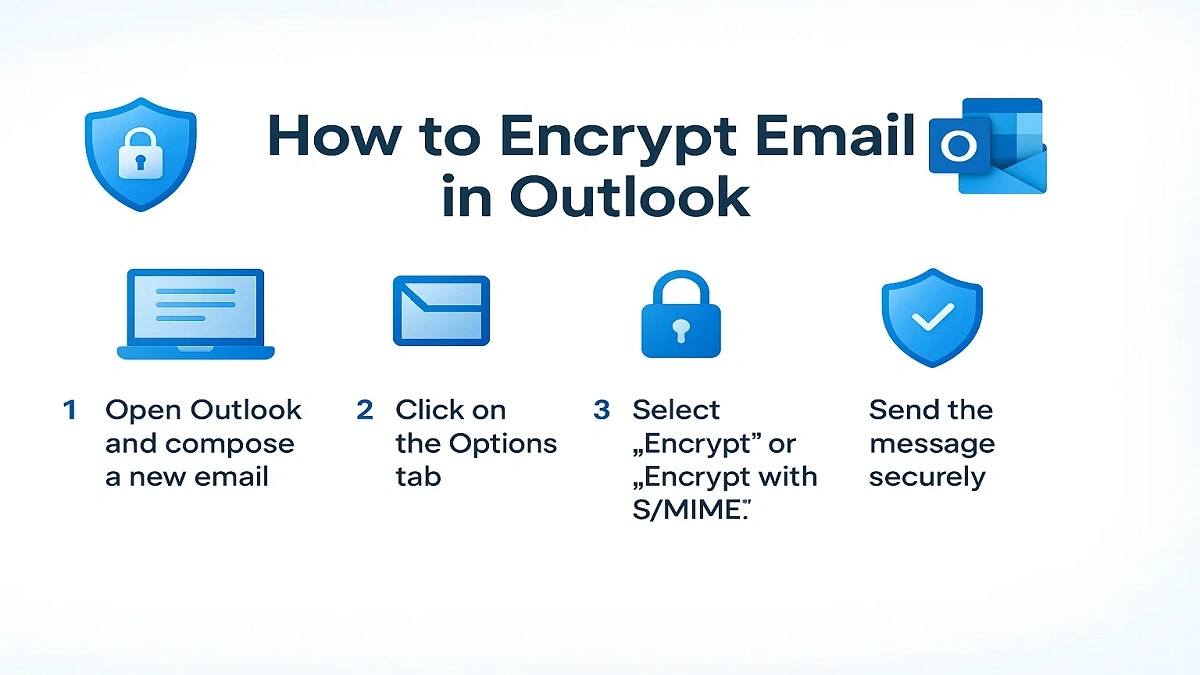
Email privacy is crucial, especially before sending private information, business documents, or sensitive client information. Outlook’s built-in encryption feature, which blocks emails from unauthorized inspection, is currently unclear to many users.
Many of the problems with Outlook’s encrypted email feature and its security capabilities when used with third-party encryption tools are solved in this guide.
Outlook encryption, how encryption works in Outlook step-by-step, how to open an encrypted email in Outlook, and whether or not it is a suitable choice for both personal and professional use are discussed in this article.
What is Outlook Email Encryption? Simple explanation
Only the recipient can access the content of your emails because of Outlook email encryption. Even if the email is detected, it cannot be read.
To prevent hackers or unapproved individuals from reading emails, Microsoft depends on S/MIME and Microsoft Purview Message Encryption.
This feature tab is useful when you’re sending:
- Financial documents
- Business contracts
- Personal identity information
- Passwords or private links
- Tax files and medical documents
Therefore, if privacy is important to you, encrypting emails in Outlook is absolutely worth it is helpful.
How to Encrypt Email in Outlook: A Complete Overview
It could impact the Outlook desktop version, Outlook on the Web, Outlook Mobile App, Outlook for Mac users, and Outlook 365.
Let me know in detail.
1. How to send an encrypted email in Outlook desktop (Windows)?

1) Click New Email after selecting Outlook.
2) Now proceed to the top ribbon’s Options tab.
3) You’ll find the Encrypt dropdown menu there. Click on it.
4) Choose one of the options provided below based on your needs:
- Encrypt-Only
- Do Not Forward
- S/MIME Encryption (if configured)
5) After that, could you type your message and submit it?
That’s all! You now know how to send an encrypted email in Outlook.
How to Encrypt the Email Subject Line in Outlook?

Even if the content of the email has been secured, Outlook doesn’t encrypt the subject line automatically. To keep it secure:
- Change the original subject line to a simple or generic one (e.g., “Secure Message”).
- Or, if necessary, use plugins like Secure Send.
How to Encrypt Email in Outlook 365?

If you use Outlook 365, the process is very similar:
1) Create a new email
2) Go to the Options tab and click Encrypt
3) Type your message
4) Send
Outlook 365 gives further limitations, like Microsoft Purview Message Encryption, which is necessary for businesses and legal clients.
How to Encrypt Emails Using the Outlook App (iPhone & Android)
You can use the Outlook smartphone app to handle private messages if the inbox or business superior has activated encryption.
Steps:
1) Tap New Email
2) Click the 3 dots (…) in the top right corner
3) Select Encrypt
4) Send as normal
How to Encrypt Email in Outlook (Mac)?

Encrypting email in Outlook Mac is quite simple:
1) Open a new email message.
2) Click Options → Security.
3) Turn on the Encrypt Message toggle.
4) Now send it.
S/MIME configuration may not be necessary, depending on your setup.
How to Encrypt Email in Outlook Web (OWA)?

1) Open Outlook web.
2) Click New Message.
3) Click the Encrypt icon next to the Send button.
4) Then choose your encryption options:
- Encrypt Only (only encryption will occur)
- Do Not Forward (the receiver will not be able to forward).
How to reply to encrypted emails in Outlook?
If you’ve got questions about how to encrypt email in Outlook when replying, when you click Reply or Reply all to an insecure message, Outlook depends on encryption. No additional settings need to be changed.
How to open an encrypted email in Outlook?

If you received the email, how you open encrypted emails is different depending on your device:
Outlook for desktop: The email will open as expected if the permissions are approved.
Web Browser: Click “Read the message” → then sign in with your Microsoft or Google account.
Mobile: Tap the message and sign in if necessary.
So if users ask how to read an encrypted email in Outlook or how to view an encrypted email in Outlook, the answer depends on authentication, not settings.
Outlook Encryption Real-World Review: Is It Good Enough?
| Feature | Rating | Review |
| Security | ⭐⭐⭐⭐⭐ | Uses strong encryption and supports Microsoft Purview |
| Ease of Use | ⭐⭐⭐⭐ | Few clicks, but confusing for first-time users |
| Compatibility | ⭐⭐⭐⭐ | Works across devices, but S/MIME setup can be tricky |
| Business Suitability | ⭐⭐⭐⭐⭐ | Ideal for legal, healthcare, finance, and corporate communication |
| Personal Use | ⭐⭐⭐⭐ | Useful, but sometimes unnecessary for casual mail |
Generally, Outlook encryption is secure, modern, and trusted, particularly if you are a Microsoft 365 user.
Bonus Tip: How to Send Secure Emails in Outlook Requiring Brackets
Some organizations use a simple rule, such as:
[Encrypt] Subject Text
As soon as [Encrypt] is detected in the subject line by Outlook, it locks down the email.
Still, don’t forget that this feature is only available in some accounts based on admin settings.
Final Thought: Should you use it?
If you place a premium on security, privacy, and compliance, then the encryption of Outlook is critical. It guards against unauthorized reading or forwarding of your private emails. As a business owner, freelancer, student, or staffer, knowing how to encrypt your emails in Outlook could help keep your messages secure and private.

BeSureTechno brings you the latest in technology, gadgets, gaming, and how-to guides. Stay ahead with easy tips, reviews, and updates. Explore tech with us.