Changing from an Android device to an iPhone is easy… except when it comes to all the data you’re going to lose in the process. And we are going to tell you how to transfer data from Android to iPhone
All those memories stored away in your phone photos, WhatsApp conversations, contacts, videos, and everything else. And the one question that comes into everyone’s head: “What if it all gets lost?“
I’ve guided more than one friend and reader to switch from Android to iPhone; I experienced the same fears when making the transition. But the truth of the matter is:
In this guide, you will learn everything about making the switch to Apple’s phones.
Things To Know Before You Transfer Data
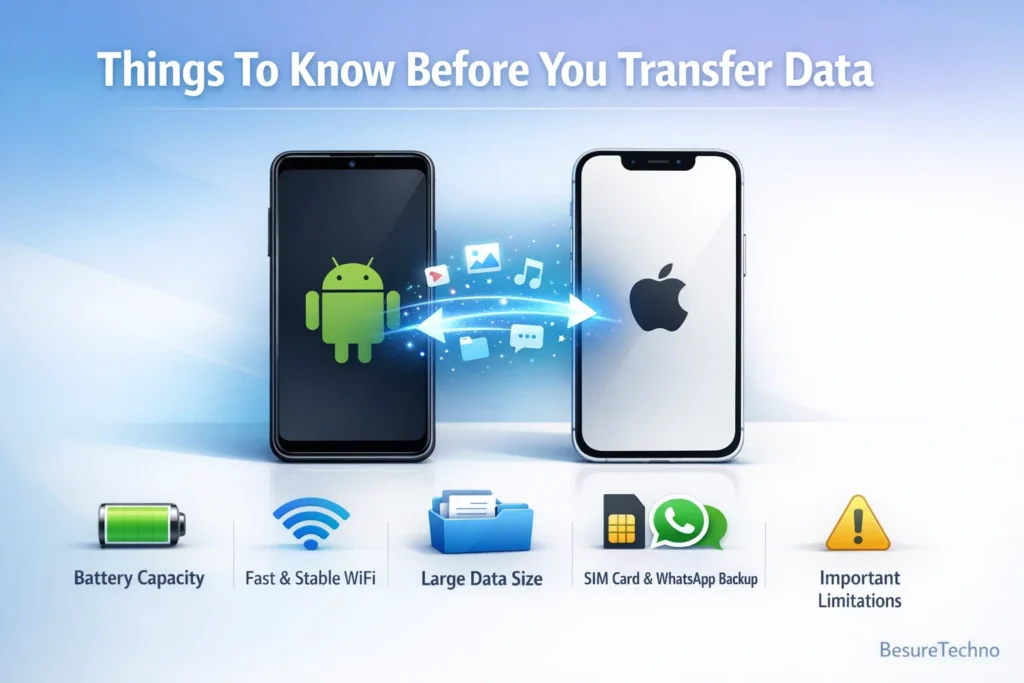
Here are some main factors that everyone ignores before moving data from their Android device to their new iPhone, leading to issues.
1. Battery Capacity:
- Both Android and iPhone must be charged beyond 70%.
- Plugged-in phones work better
2. Fast and Stable WiFi Connection
- Transfers happen through WiFi
- Prevent bad connection speeds and stability (a common problem in India)
While testing, it was found that slow WiFi is the leading cause of failed data transfers.
3. Large Data Size
- For 5–10GB: 20–40 minutes
- For 50GB+: 1–2 hours
4. SIM Card and WhatsApp Backup
- The SIM card should be inserted into the Android (for OTP authentication).
- WhatsApp backup on Google Drive
5. Significant Limitation
- Not all data can be transferred post-installation.
- It’s best to transfer all the items during setup.
Method 1: Using the Move to iOS Application
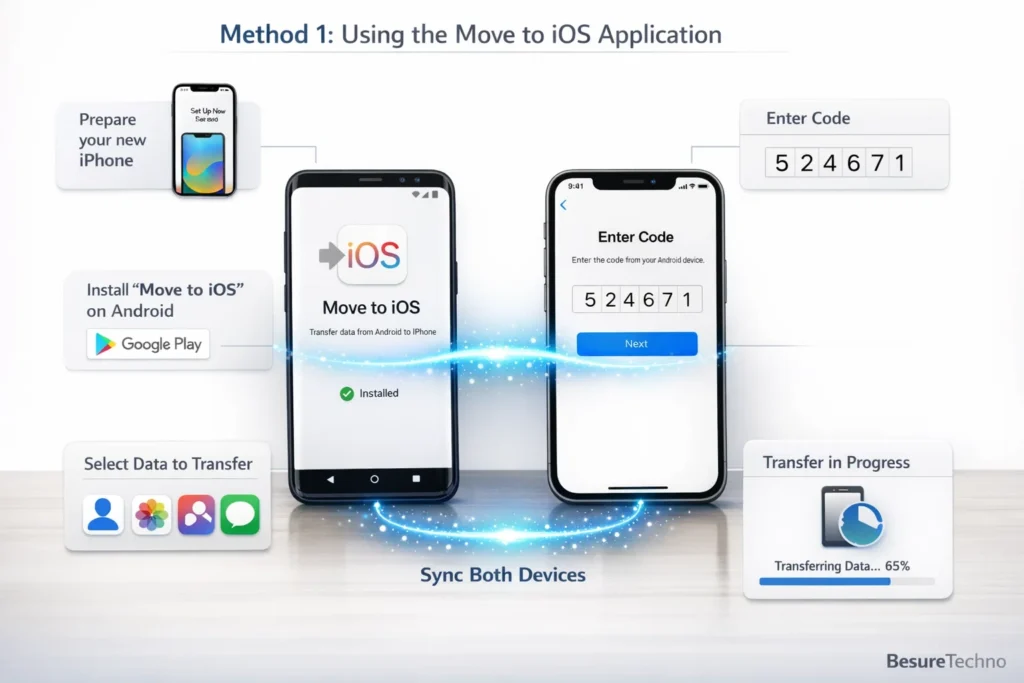
This is the official way to transfer files from an Android device to an iPhone.
Why use this method:
- Data is transferred directly (does not require using a computer).
- The official and secure way to transfer data.
- Moves only essential data
Instructions:
Step 1: Prepare your new iPhone
- Switch on your iPhone.
- Select language and country/region settings.
- Pause at the “Apps & Data” page.
Select: “Move data from Android.”
Step 2: Install “Move to iOS” on Android
- Download the application from the Google Play Store
- Run the application and give permissions
Step 3: Enter Code
- Code of 6 digits or 10 digits shown on iPhone
- Input the same code on your Android
Step 4: Sync Both Devices:
- Both devices will connect through Wi-Fi.
- Hold both devices together.
Step 5: Data to Be Transferred
You can choose to transfer such data as:
- Contacts
- Text messages
- Media files (photos and videos)
- Google account
- Files
Choose data and click “Continue.“
Step 6: Just wait until the process completes
- Do not touch either of your two smartphones.
- The screen appears locked up, but it is actually not.
For me, when I synced, the screens appeared locked for about 10 minutes, but were processing.
Tips for Successful Transfer:
- Put phones side by side
- Don’t move from one app to another
- Disconnect the mobile internet
- Connect to reliable WiFi
Method 2: Post-Setup (Manual Transfer)
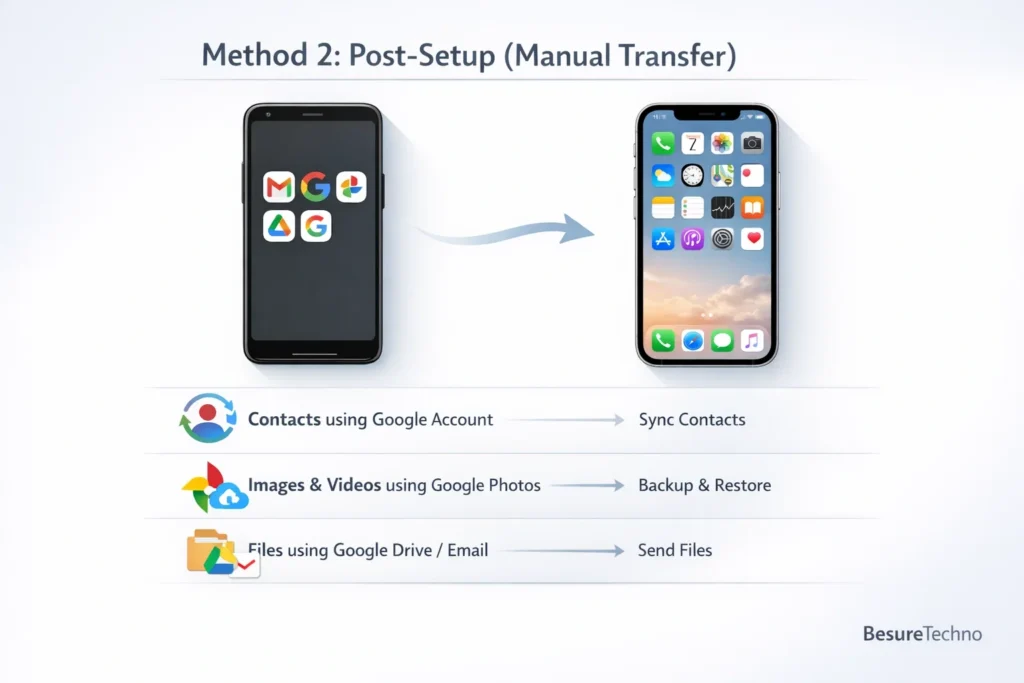
In case you didn’t follow the setup approach, no problem at all. It is still possible to transfer from Android to iPhone, but manually.
Step 1: Contacts using Google Account
- Head to Android Phone Settings -> Google Account -> Sync
- Switch on Contact syncing
- Sign in to your Google account on your iPhone
Contacts will automatically be transferred.
Step 2: Images and Video Transfers Using Google Photos
- Upload all images to Google Photos
- Install the app on iPhone
- Log in to get everything
This is the best process to transfer images without wires.
Step 3: Files Using Google Drive/Email
- Upload files to Google Drive
- Access downloaded files
Reality Check (Important):
- It takes more time.
- No SMS backup will be transferred
- Apps won’t be transferred to
A good choice for backup, however, not perfect for an Android-to-iphone migration guide
How to transfer WhatsApp from Android to iPhone
The most common question asked is:
transfer WhatsApp from Android to iPhone
And yes, this can be done officially.
Requirements:
- Android Version 5.0+
- iPhone iOS version 15.5+
- Same Phone Number
- Move to iOS Application
Steps
- Begin iPhone setup process
- Click Move Data from Android
- Pick WhatsApp
- Press “Start” on Android
- Finish the transfer process
Some Important Points
- WhatsApp data transfer is only possible during the setup process
- Not possible to perform it afterwards
Many people commit this mistake and repent later.
Common Issues:
- Stuck at 40%? Wait and don’t cancel.
- WhatsApp crashes? Restart both devices.
- Data transfer failure? Make sure WiFi is on.
What Data Can and Can’t Be Transferred
Here’s the truth
| Data Type | Transfer Possible? |
|---|---|
| Contacts | ✅ Yes |
| Photos & Videos | ✅ Yes |
| WhatsApp Chats | ✅ Yes (official method) |
| SMS Messages | ✅ Yes |
| Apps | ❌ No |
| App Data | ❌ No |
| Music Files | ⚠️ Partial |
| Call Logs | ⚠️ Sometimes |
| Files/Documents | ✅ Yes |
The Honest Truth (Crucial):
Apps Do NOT Automatically Transfer
Even if the apps install successfully:
- You still need to sign in again
- Your data may NOT be transferred
This is when most people get frustrated.
Problems and Solutions of how to transfer data from Android to iPhone
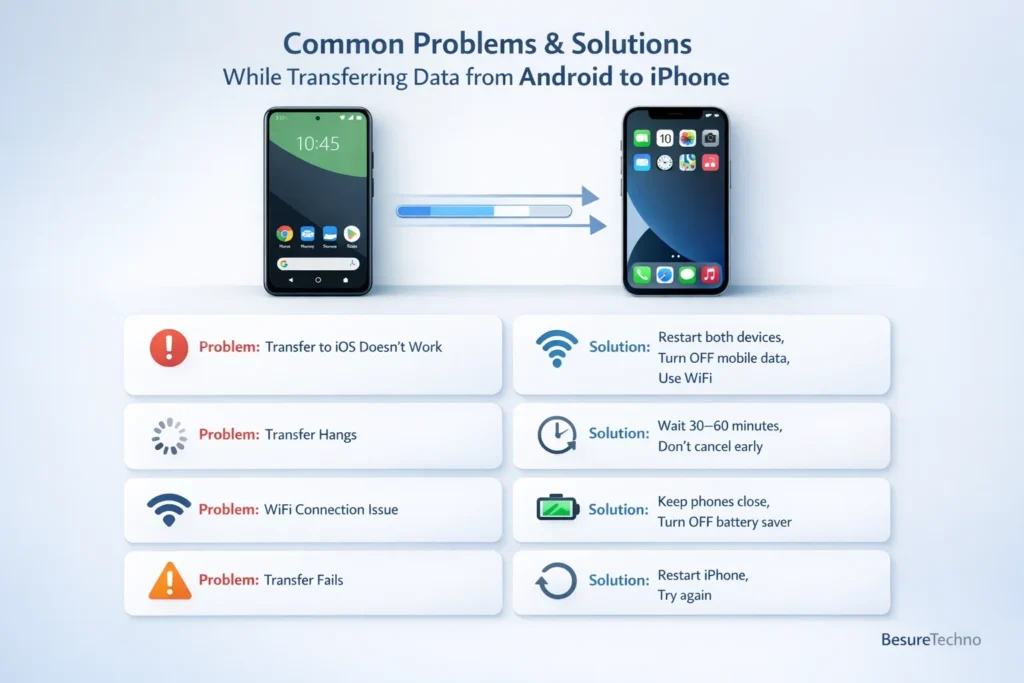
1. Transfer to iOS Doesn’t Work
Solution:
- Restart both devices
- Switch mobile data OFF
- Connect through WiFi
2. Transfer Hangs
Solution:
- Wait for 30-60 minutes
- Don’t cancel before the time
3. WiFi Connection Problem
Solution:
- Bring phones near
- Battery Saver Mode OFF
4. Transfer Fails
Solution:
- Restart your iPhone
- Try transferring again
How Much Time Will Data Transfer Take?
A realistic estimation would be:
| Data Size | Time |
|---|---|
| 5GB | 10–20 minutes |
| 20GB | 30–60 minutes |
| 50GB+ | 1–2 hours |
Important Tips (Must Read)
- Hold phones closer
- Avoid using phones while transferring.
- Turn off notifications, if you can
- Connect to a fast WiFi connection (preferably 5GHz)
Important Warning
- Do not interrupt the process
- Do not switch apps
- Do not lock phones constantly
Even these simple steps could mess up everything
Personal Story: How Everyone Messes Up the Whole Thing
While transitioning from Android to iPhone, I’ve found out that:
- Apps won’t be transferred, I believed so.
- I neglected the WiFi speed transfer and got stuck.
- I came close to canceling when 80%, big mistake
The main thing to remember when transferring from Android to iPhone is patience
Comparing Speed: Transition to iOS vs Transfer Manually
| Method | Speed | Ease | Recommended |
|---|---|---|---|
| Move to iOS | Fast | Easy | ✅ Best |
| Manual Transfer | Slow | Medium | ⚠️ Backup option |
Conclusion:
It can be difficult to switch from Android to an iPhone, particularly when it comes to data.
You won’t have to worry about your data when you shift from Android to iPhone, according to this tutorial on data transfer.
The important things here are:
- Use “Move to iOS” at the time of setup
- Avoid rushing
- Know the limitations
You’ll realize that everything is not as difficult as it may look in the end.
Bonus Tip:
You can consult the following list of the best smartphones under 15000 if you’re still changing.

I’m Pankaj Chauhan, founder of BeSureTechno. With 3+ years of hands-on tech experience, I cover smartphone reviews, laptop reviews, AI tools, and how-to guides, all based on real-world testing and personal experience.