Is your laptop getting too hot and becoming a little furnace while you game or work? You’re not the only one; laptop overheating is quite common among computer users. Whether you’re typing a presentation, playing games, or just shopping online using Gaming Laptops Under 50000, overheating can be a bad performance problem, causing your system to freeze up and potentially damage vital hardware.
In this piece, we’re going to examine laptop overheating symptoms and solution of how to fix overheating laptops, including the reasons why your device gets hot, and some practical advice on how to cool down a laptop, including the HP laptop overheating solutions.
Why is your laptop overheating?
According to a 2023 study by Puget Systems. Laptop overheating is not only unpleasant- it is risky. Here’s why:
- Performance is lower: Your CPU and GPU choke when temperatures are high.
- Hardware Damage: Constant overheating can also kill your motherboard, battery, and SSD.
- Intermittent Shutdowns: The system protection comes in and shuts down your machine while you are in the middle of an important project.
- Reduced Life Span: Heat is an enemy of your laptop, and will reduce its working life.
Real Stats You Should Know:
Let’s be real: we all brush off overheating, assuming it’s just a “loud fan” or a minor annoyance. But here’s what’s going on under the hood:
Performance Throttling:
New laptops have thermal throttling to avoid damage. But with that comes the consequence that your Intel i7 or AMD Ryzen 7 Processor will never be running at full throttle. Freezes in gaming, video editing, and even web browsing are all symptoms of the same.
Hardware Damage:
In the Consumer Tech Report 2024, continuous high temperatures were discovered to permanently damage the GPU or CPU within less than 18 months. That’s a short life for your expensive machine.
Expensive Fixes:
- A heat-damaged CPU or motherboard would cost between ₹8,000 and ₹30,000 or more to replace, almost half the price of a new laptop.
- Why take the chance when you can take a few easy steps and return your laptop to a cooler, more efficient existence?
Laptop Overheating Symptoms:
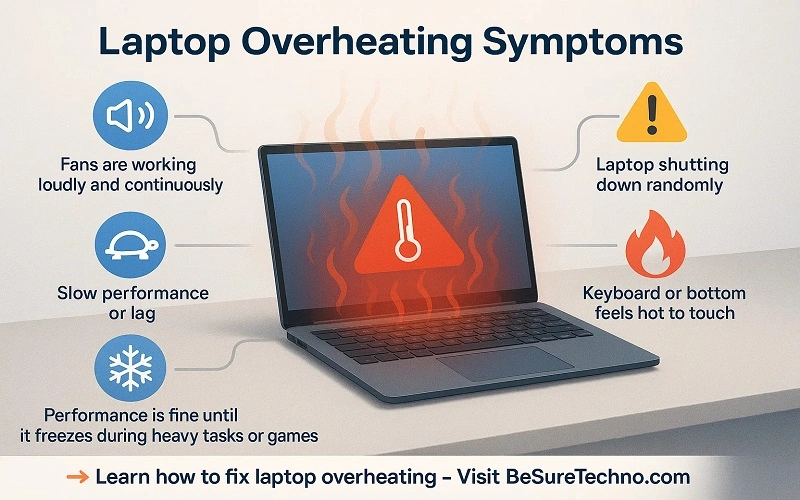
Before you start, check for all the symptoms of laptop overheating. It’s essential to know them:
- Fans work regularly and very loudly.
- Slow performance or lag
- It shuts down randomly due to overheating in the laptop.
- The keyboard or the bottom case is hot to the touch
- Performance seems fine until the machine freezes during heavy tasks or games
How to fix Overheating Laptops (Step-by-Step)
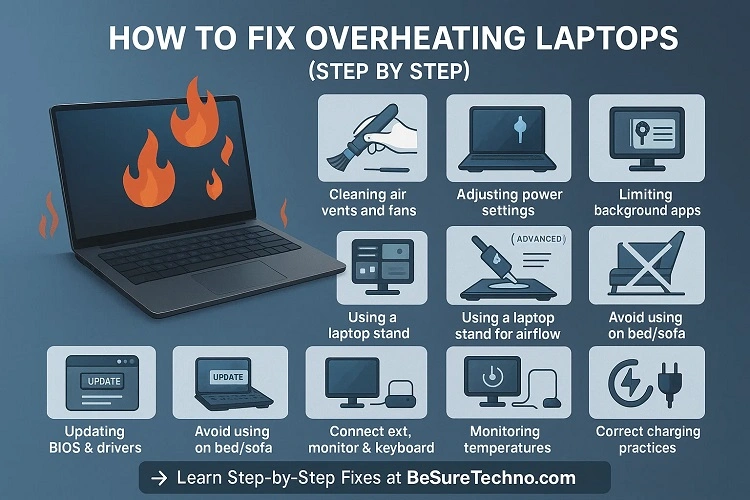
Let’s get to actual, working fixes from easy habits to DIY maintenance and clever hardware upgrades.
1. Clean the Air vents and fans:
Dust builds up over time inside your laptop. This blocks airflow and makes fans less efficient.
What You Need:
- A compressed air can (or a low-voltage electric blower)
- Soft-bristled brush
- Screwdriver (for deeper cleaning)
Steps:
- Shut down your laptop and disconnect it.
- Blow compressed air through the side and bottom vents.
- Gently clean dust from fan grills using a soft brush.
- For power users: open the bottom panel and clean the fans directly.
2. User cooling Pad:
Laptop cooling pads improve ventilation and reduce internal heat, which is crucial for how to stop overheating a laptop when gaming..
Pro Tip:
Select top-rated cooling pads for laptops with several fans and adjustable height. This enhances both cooling and ergonomics.
3. Adjust power settings:
Both Windows and macOS have settings that can lower CPU load.
On Windows:
- Navigate to Control Panel > Power Options.
- Choose Power Saver or Balanced mode.
- Change Processor Power Management to restrict the max processor state to 80-90%.
On Mac:
- Navigate to System Settings > Battery
- Enable Low Power Mode
Note: Slightly slowing down the CPU can reduce heat by as much as 15°C, as seen in a 2023 test by NotebookCheck.
4. Limit Background Processes:
Having too many apps running in the background can cause CPU spikes.
What to Do:
- Use Task Manager (Ctrl + Shift + Esc) on Windows
- Use Activity Monitor on macOS
- Close unnecessary browser tabs, particularly resource-intensive sites like YouTube and online editors
5. Replace Thermal Paste (Advanced):
Thermal paste helps transfer heat from your CPU/GPU to the heatsink. It dries out and becomes less effective over time.
When to Replace:
- The laptop is 2+ years old
- Cleaning and other fixes haven’t helped
- You’re comfortable opening hardware
Best Pastes:
- Arctic MX-6
- Noctua NT-H1
6. Laptop Stand Up:
Putting the laptop on a flat, solid surface aids ventilation.
Bonus Tip:
Use a Homemade Laptop Stand—a book or a cardboard riser can work well!
7. Update BIOS and Drivers:
Manufacturers constantly roll out new updates that promote better thermal control.
How to Do It:
- Go to the official website of your laptop. It can be Dell, HP, Lenovo, etc.
- Look for BIOS updates and install with caution
This is particularly effective for HP laptop overheating fix.
8. Stop Using Soft Surfaces:
Do not use laptops on pillows, sofas, or beds. They block air vents and contain heat.
Fix:
Use a tray or cooling pad to raise your laptop above fabric surfaces.
9. Use External Monitor & Keyboard:
When you’re working on heavy stuff, try keeping your laptop off to the side and using it with an external keyboard and display. It permits improved heat dispersal, particularly when you shut the lid in “clamshell mode” (for MacBooks).
10. Monitor Temperatures with Software:
Monitoring temperatures aids in catching issues early.
Tools:
- HWMonitor (Windows)
- Mac Fan Control (macOS)
- Core Temp (Windows)
- Open Hardware Monitor
- Trigger temperature alerts at or above 85°C for the CPU and 75°C for the GPU.
11. Charging Practices
Why Does My Laptop Get Hot While Charging? Laptops overheat while charging for no obvious cause. Avoid using a lot of apps or playing games while your laptop is charging. Heat may damage parts more quickly and build up more quickly.
Bonus Tips:
- Prevention Is Better Than a Cure
- Here’s how to prevent overheating from returning:
- Clean your laptop every 3-6 months
- Use a good antivirus (viruses can cause CPU spikes)
- Don’t charge while gaming for extended periods
- Turn off your device when not in use
- Keep your OS and drivers updated
What to Do When Your Laptop Won’t Turn On
If your laptop overheats and won’t start up, give it time to cool off. You can remove the battery, do so, and try restarting. If you continue to experience problems, your hardware could incur additional damage; try having a professional look at it.
Final Thoughts:
Laptops overheat, but it does not mean that you need to spend on repairs or replacement. With cleaning, intelligent usage, and appropriate accessories, your system can operate faster, cooler, and for a longer time.
Don’t overlook the heat repair it smartly.
FAQs:
Ans: Yes, indirectly. If you are low on RAM, more of your disk (swap memory) will be used, and this can make further work for the CPU (and may raise some heat).
Ans: Of course! Some solutions to this issue include cleaning the fan, reapplying thermal paste, using a cooling pad, and turning off lower-performance apps.
Ans: Based on what way it uses it changes. It’s very hot for playing lots of games or editing videos for 10 to 30 minutes.
Ans: When closed off, it remains cool, and when receiving free airflow, it takes about 10 to 20 minutes to cool down to the correct temperature.

I’m Pankaj Chauhan, founder of BeSureTechno. With 3+ years of hands-on tech experience, I cover smartphone reviews, laptop reviews, AI tools, and how-to guides, all based on real-world testing and personal experience.