Still worried about that app stealing your data or spying on your conversations? From messaging platforms like WhatsApp and Instagram to safety apps, it’s important to stay alert and protect your privacy.
Quick Answer: How to Check if an App Is Safe?
- Download apps from the Google Play Store and the App Store.
- Check app ratings and reviews.
- Scan app permissions before installing.
- Use built-in tools like Google Play Protect or an online app safety checker.
- Do not download from unofficial APK websites. Use a secure link application or trusted tools like Google Safety App for extra security
- Uninstall any app that acts suspiciously or sucks battery/ data.
Continue reading on Besuretechno for complete information.
Why is App safety Important?
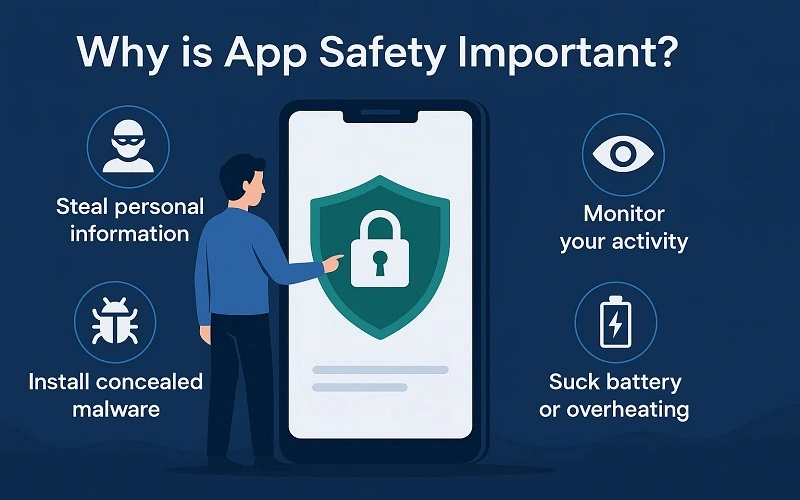
Apps can access your photos, contacts, messages, and even bank account information. A suspicious app can:
- Steal personal information.
- Monitor your activity.
- Install concealed malware.
- Suck the battery or overheating
It all starts with verifying if an app is safe to install.
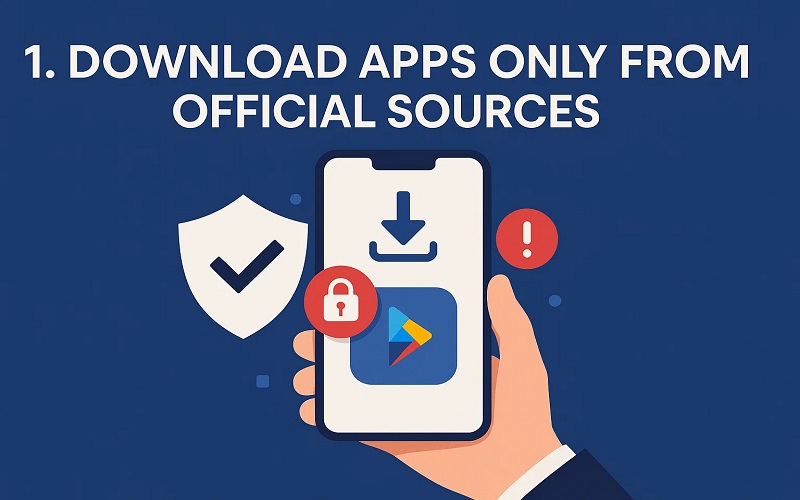
1. Download Apps Only from Official Sources
Android Users:
- Remains on the Google Play Store.
- Google uses Play Protect to search for malware in apps. It scans apps you have installed on your device continuously for malicious activity.
Tip: Google Play Protect must always be enabled. How to check:
Open Play Store → Tap on your profile → Play Protect → Enable “Scan apps with Play Protect.”
iPhone Users:
Apple’s strict app approval process reduces risk. As an added precaution, use a safe security app or family safety app to monitor apps used by younger or older users.
2. Review App Ratings and Reviews
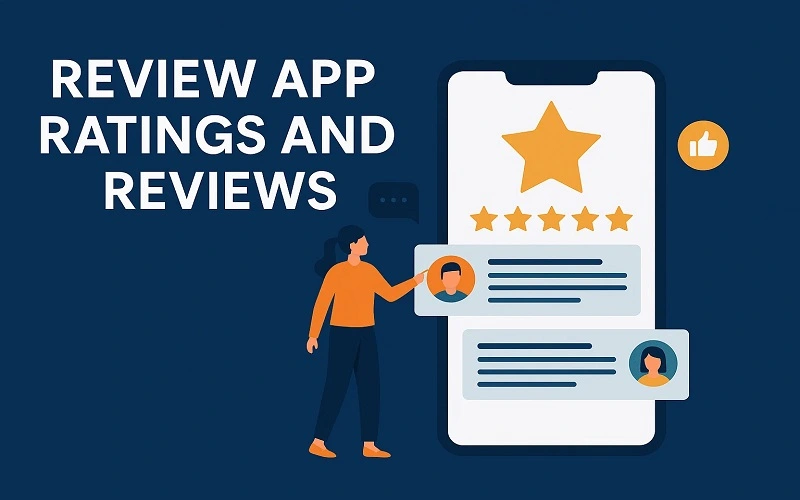
Before installing:
Search for high star ratings and recent positive reviews.
Be careful if:
- Reviews are unclear (“Great app!” repeated).
- There were complaints about ads, crashes, or suspicious behavior.
Privacy-conscious apps like private photo vault or keep safe app are usually popular if they treat user information in a very respectful manner. Check their update history and privacy policy first before you trust them.
3. Check App Permissions
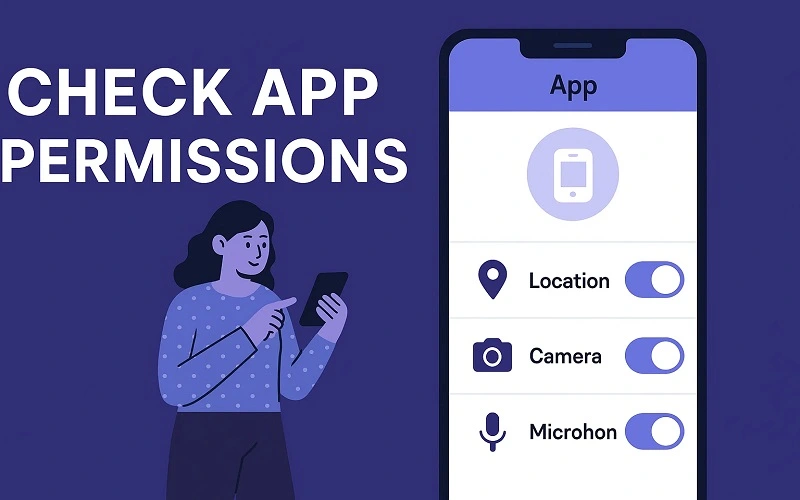
A secure app should only request permissions that it needs.
Example:
- A photo editing application might require access to your pictures.
- A flashlight app should never request a microphone or access to contacts.
In Android:
- Navigate to Settings → Apps → [App name] → Permissions.
- Deny anything unnecessary.
On iPhone:
- Settings → Privacy & Security → [Permission type] → See which apps have access. Even apps like Drive Safe and Save App, or Safety App for Women, should only ask for the permissions they need, location, or notifications, nothing else.
4. Scan APK Files before installing:
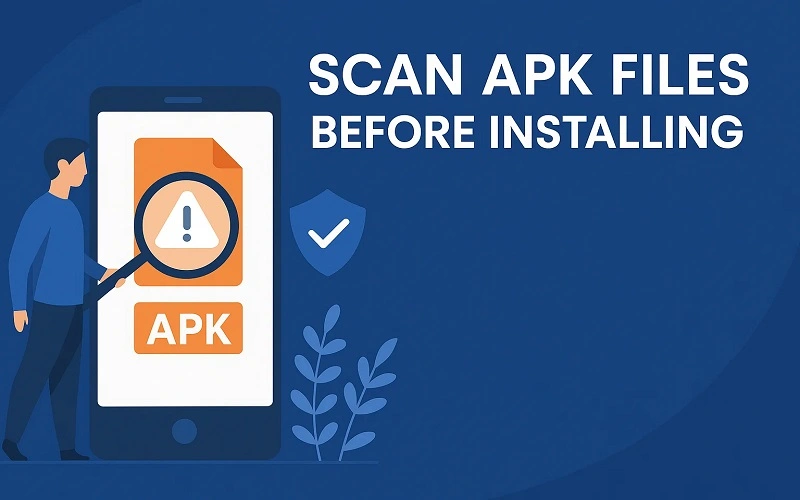
If you are installing APKs on Android.
- Avoid APKs; the source is still not fully trustworthy.
- Scan the APK for viruses using an online app safety checker.
Common web crawlers:
- Virus Total
- Meta Defender Cloud
Before you sideload, always scan with tools like VirusTotal. Even for innocent apps, like Cred App, make sure you’re downloading from their official website. Avoid fakes that are circulating on unsafe APK sites
5. Monitor for Suspicious App Behavior
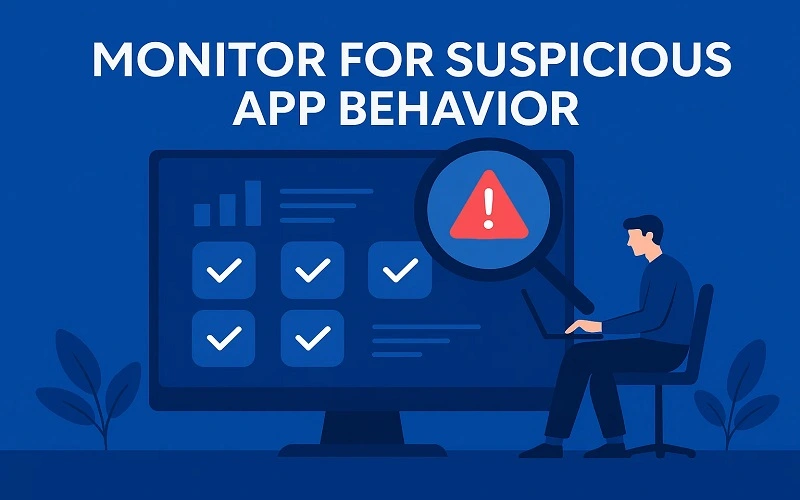
If you’re wondering how to find a harmful app in Android, start by watching for these signs:
- The battery drains very fast
- Higher data usage
- Unrequested pop-ups or advertisements.
- Device overheating.
- Slow execution.
If you find these:
- Uninstall the app immediately.
- Run a full scan with Google Play Protect (Android).
- Restart your phone.
Abusive device resource apps, including free online loan apps or Android fake safe browsers, can behave like spyware.
How to Remove Malicious Apps?
You can also access Uninstall harmful app settings under device settings to remove suspicious apps.
On Android:
- Settings → Apps → [App name] → Uninstall
- Or long-press the app → Uninstall
On iPhone:
Long-press the app icon → Remove App → Delete App
Should You Trust All Apps on Official Stores?
Even on official stores, there are sometimes unsafe apps. Remain attentive if:
- The developer is unknown.
- The app doesn’t have many downloads
- Permissions appear excessive
- Reviews include malware or scams
Final Tips to Remain Safe
- Update the phone’s Operating System.
- Make strong passwords.
- Don’t install apps from suspicious links.
- Frequently review your app list and uninstall unusable apps.
Conclusion
Think before you download. Apps, whether AVG Safe Browser or Google Files Safe Folder, are of little use if not used responsibly and safely.. These steps will help both Android and iPhone users that the app is safe or not
FAQs:
Ans: App is a verified developer, check ratings and reviews, and it is on Google Play or App Store. Also, check its website and privacy policy.
Ans: No. Only trust APKs from reputable sources such as APKMirror or the official website. Avoid unknown sources because they may contain malware.
Ans: More ads, extra permissions, fake reviews, quick battery drain, or a slow phone, these could all be warning signs.
Ans: Inspect permissions for apps. If a calculator application requires access to the camera, contacts, or location, something is wrong. Use security software or antivirus software to scan for data theft in stealth mode.

I’m Pankaj Chauhan, founder of BeSureTechno. With 3+ years of hands-on tech experience, I cover smartphone reviews, laptop reviews, AI tools, and how-to guides, all based on real-world testing and personal experience.